Freestate Electric has chosen Cisco Duo to implement Multi Factor Authentication across network resources.
Notes
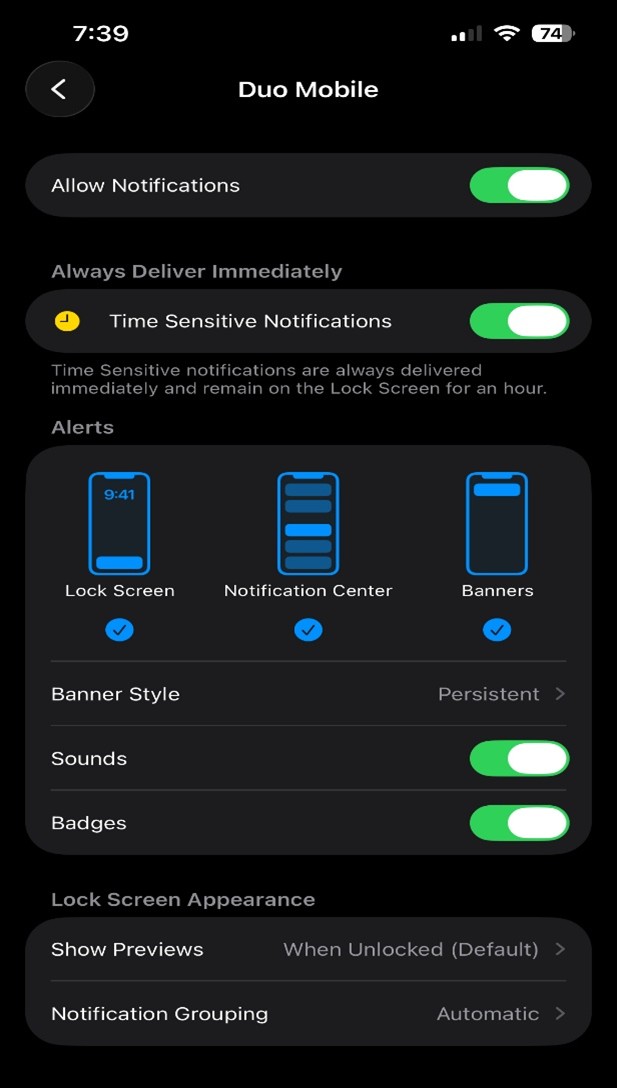
- If you are not getting push notification on your phone, verify you have notification enabled for the Duo app.
- Go to Settings | Notification Center | Duo
- Enable notifications
- Do not approve push notification if you are not logging into the VPN or Webmail. If you are not attempting to login and get a push notification, please alert the IT department as soon as possible.
- If your phone is on a Guest network, verify internet connectivity on the PHONE before trying to connect to the AnyConnect VPN on your computer. If the phone does not have internet access it will not receive the push and you will not be allowed to login to the VPN.
- If you do not have the Cisco Duo app on your iPhone, please go to the app store and install it:
- https://itunes.apple.com/us/app/duo-mobile/id422663827
- Please contact the IT department to receive an activation link if you are not currently enrolled with Cisco Duo.
Logging into the VPN with a Push Notification
-
- To connect to the VPN, either search “Cisco Secure Client” or head to the bottom right corner of the screen and tap the arrow to reveal a set of icons.
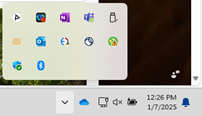
Then select the following icon to open the client.

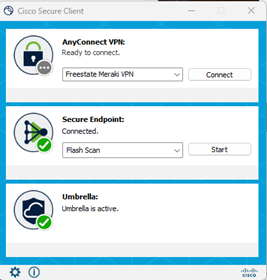
- This will open the below screen where you can connect to the VPN, just hit connect and enter your Freestate username and password to gain access. Please note: You will need to authenticate with DUO before you can access the network files.
Duo Mobile
- Go to Settings > Notifications > Scroll Down, find Duo Mobile > click “Allow Notifications” > please have “Time Sensitive Notifications” turned on > Have all three Alert types Chosen > Banner style to “Persistent” > Sounds and Bages turned on as well.
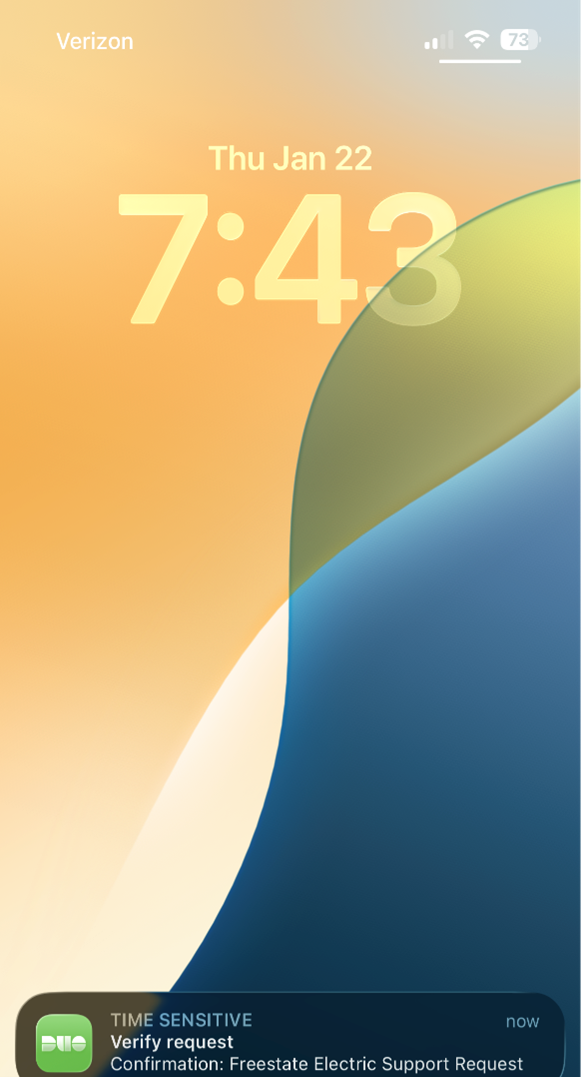
- The App will look like this when you open it up, but will only have the Freestate Electric Account.
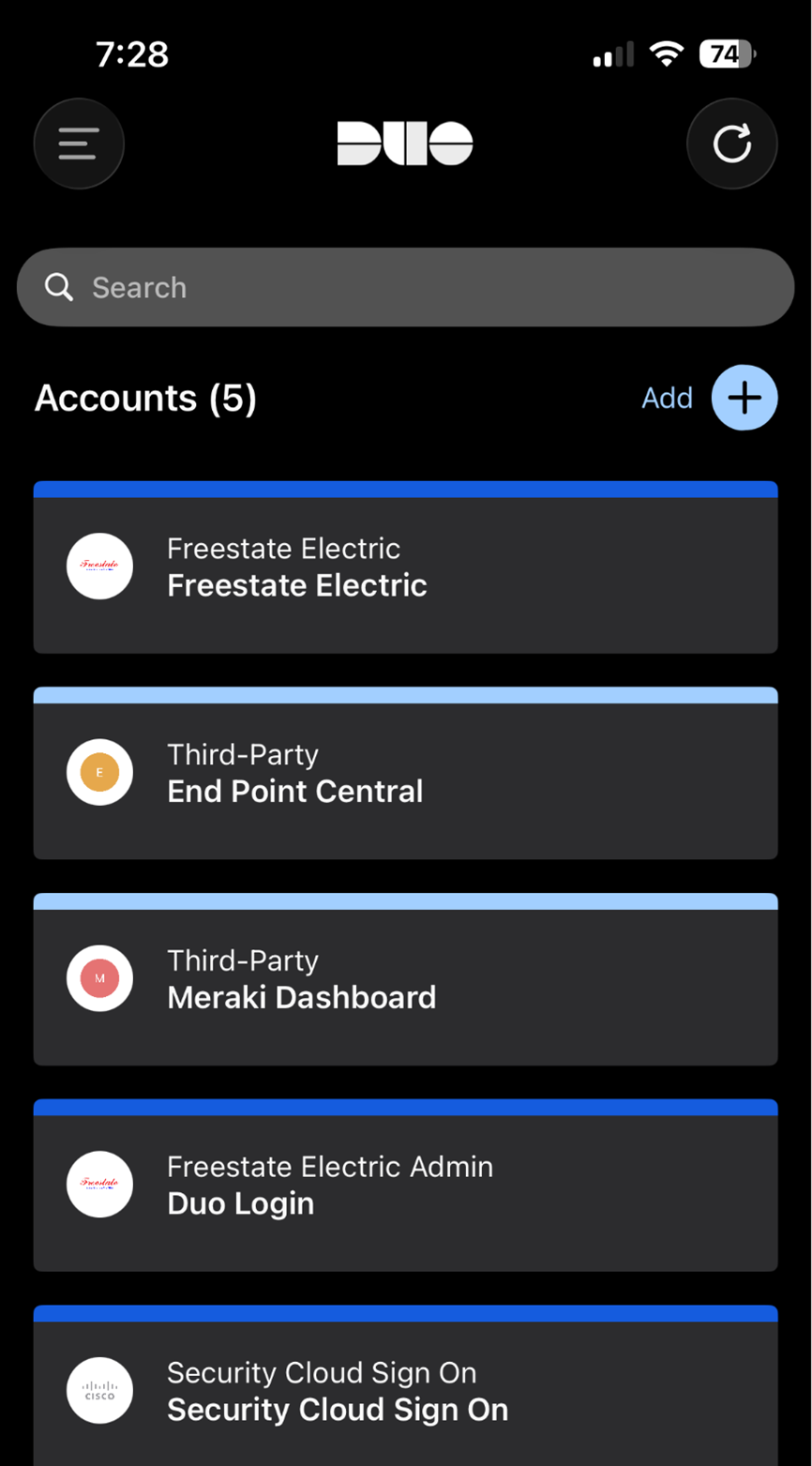
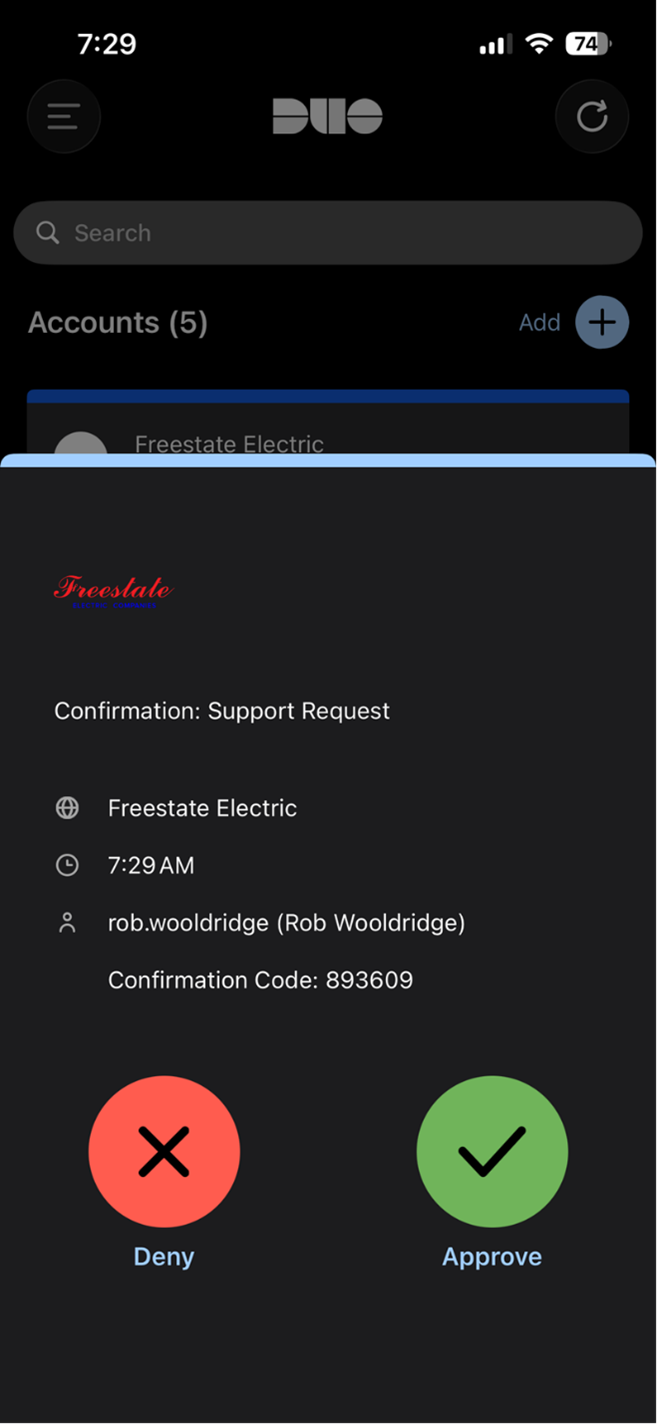
- DUO will ask to authenticate in two ways – with a 6 Digit Code or with a POP up with a Green Check mark or Red X – Pictures shown below
Logging into the VPN with Passcode
- On your phone open the Duo app and retrieve the One Time Passcode (OTP)
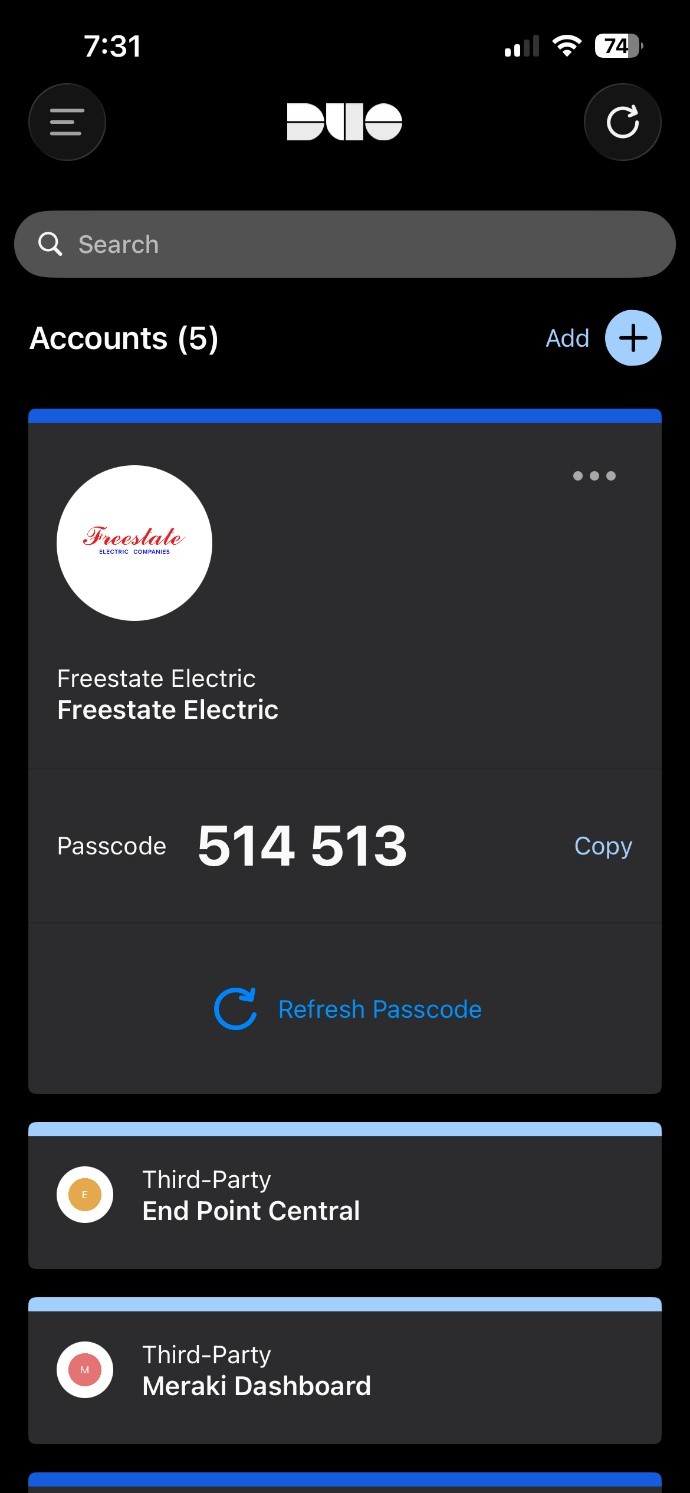
- On your computer open the AnyConnect client and press connect
- When entering your password enter <Password>,<OTP>
- Example. If your password is Password1 and your OTP is 398 720 you would enter “Password1,398720” in the password box for AnyConnect
- If for whatever reason you get a DUO Push Notification and you are not signing into your email or to the VPN, please press DENY and contact IT immediately.
Webmail
- On your computer browser go to https://outlook.office.com
- Enter your username and password
- On your phone you will get a notification from Cisco Duo
- Press the notification and it will open the Duo app
- Press Approve and you will then get logged onto the Webmail (You have 30 seconds to approve or it will expire)